
Setting IPTV – Official B1G Setting IPTV Guide for UK Users
Welcome to the official Setting IPTV guide from B1G Player. This step-by-step tutorial shows you how to install, configure, and complete your B1G Setting IPTV on supported Android devices, allowing you to start streaming within minutes.
Whether you’re setting up IPTV on an Android Smart TV, Firestick, Android TV Box, smartphone, or tablet, this guide walks you through every step. Simply install the official B1G Player app, enter your Username, Password, and Server URL, and enjoy instant access to 35,000+ live TV channels, 50,000+ movies, and 10,000+ TV series.
Designed specifically for UK viewers, our Setting IPTV guide makes the installation process simple, helping you enjoy live football, sports, British TV channels, movies, and international entertainment with fast, reliable streaming.
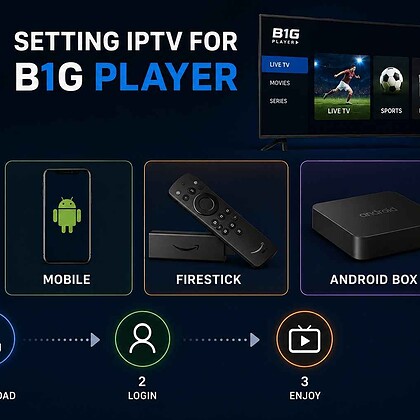
1) Setting IPTV on Android Devices (Official B1G Setting IPTV Guide)
This Setting IPTV guide explains how to install the official B1G Player app on Android devices. The B1G Setting IPTV method works on Android Smart TVs, Android TV Boxes, Firestick, Android smartphones, and tablets.
- Android Smart TVs (Sony, TCL, Philips, and more)
- Android TV Boxes (Mi Box, NVIDIA Shield, Chromecast with Google TV, and similar devices)
- Android Smartphones & Tablets
- Amazon Firestick & Fire TV devices
Step-by-Step Setting IPTV Guide
- Open the Google Play Store.
- Search for and install the Downloader app.
- Launch Downloader and allow the required permissions.
- Enter the official B1G Setting IPTV Downloader Code:
Or use the official B1G Player download link:
http://aftv.news/5637737- Download and install the B1G Player APK.
- Open the B1G Player app.
- Enter your Username, Password, and Server URL provided with your B1G IPTV subscription.
- Select Login and wait for your channels, movies, and TV series to load.
✅ Your B1G Setting IPTV is complete. You can now stream live TV, sports, movies, and TV series.
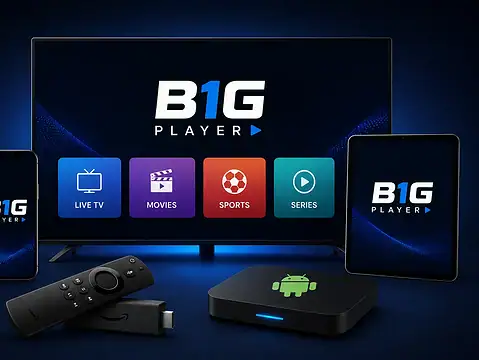
2) Setting IPTV on Firestick (Official B1G Setting IPTV Guide)
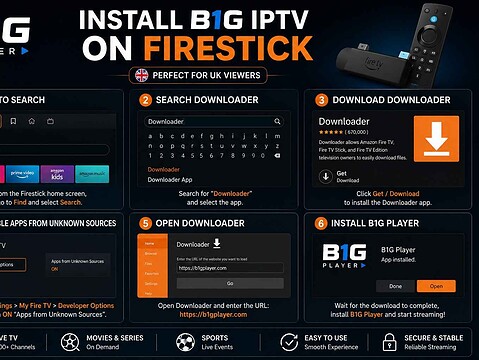
This Setting IPTV guide shows you how to install the official B1G Player app on Amazon Firestick and Fire TV devices. Follow these simple steps to complete your B1G Setting IPTV and start streaming live TV, sports, movies, and TV series in just a few minutes.
Step-by-Step Firestick Setting IPTV Guide
- From the Firestick Home screen, select Find → Search.
- Search for and install the Downloader app.
- Go to Settings → My Fire TV → Developer Options.
- Enable ADB Debugging and allow Downloader under Install Unknown Apps.
- Open the Downloader app.
- Enter the official B1G Setting IPTV Downloader Code:
Or use the official download link:
http://aftv.news/5637737- Download and install the official B1G Player app.
- Open the app and enter your Username, Password, and Server URL.
- Select Login and wait for your live TV channels, movies, and TV series to load.
✅ Your Firestick Setting IPTV is complete. Enjoy premium streaming with B1G Player.
Setting IPTV on Other Devices
If your device doesn’t support the official B1G Player app, you can still complete your B1G Setting IPTV using compatible IPTV player applications. Simply log in with your Xtream Codes API or M3U Playlist credentials to access your subscription.
- Xtream Codes API
- M3U Playlist URL
For the best experience, use trusted IPTV players downloaded from the official app stores on Samsung Smart TVs, LG Smart TVs, iPhone, iPad, and other supported devices.
3) Setting IPTV on iPhone, iPad & Apple TV
The official B1G Player app is not available for iOS devices. However, you can complete your B1G Setting IPTV using a compatible IPTV player with your Xtream Codes API or M3U Playlist credentials.
Step-by-Step Setting IPTV Guide
- Open the App Store on your iPhone, iPad, or Apple TV.
- Install a compatible IPTV player such as VU IPTV Player, IBO Player, or another supported IPTV app.
- Launch the IPTV player and select Login with Xtream Codes API.
- Enter your Server URL, Username, and Password.
- Select Add User or Login and wait for your channels to load.
- Start streaming live TV, sports, movies, and TV series.
✅ Your Setting IPTV on iPhone or iPad is now complete.
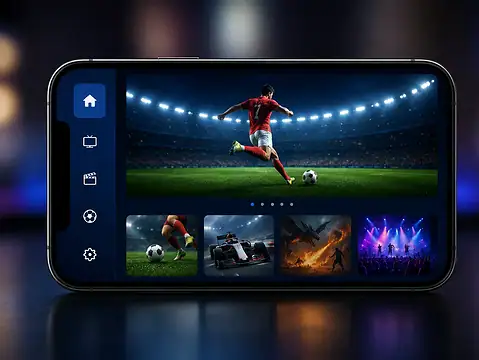
4) Setting IPTV on Samsung & LG Smart TVs
Samsung Smart TVs (Tizen OS) and LG Smart TVs (webOS) don’t support the official B1G Player app. You can still complete your B1G Setting IPTV using a compatible IPTV player from the official app store.
Step-by-Step Setting IPTV Guide
- Open the Samsung App Store or LG Content Store.
- Install IBO Player, SmartOne IPTV, or CR7 Player (where available).
- Launch the IPTV player and note your Device ID or MAC Address.
- Log in using your Xtream Codes API or M3U Playlist credentials.
- Restart the application if required and allow your playlist to load.
- Enjoy live TV, sports, movies, and TV series on your Smart TV.
✅ Your Setting IPTV on Samsung or LG Smart TV is complete.
5) Setting IPTV on Roku TV
The official B1G Player app is not available for Roku devices. To complete your B1G Setting IPTV, use a compatible IPTV player with your Xtream Codes API or M3U Playlist credentials.
Step-by-Step Setting IPTV Guide
- Turn on your Roku device and open the Roku Channel Store.
- Install a compatible IPTV player such as CR7 Player or IBO Player (where available).
- Launch the IPTV player and note your Device ID or MAC Address.
- Open the player’s activation website on your phone, tablet, or computer.
- Enter your Xtream Codes API or M3U Playlist credentials.
- Restart the application and begin streaming live TV, sports, movies, and TV series.
✅ Your Setting IPTV on Roku TV is now complete.
6) Setting IPTV on Windows PC & Laptop
Although the official B1G Player app isn’t available for Windows, you can complete your B1G Setting IPTV using a compatible IPTV player with your subscription credentials.
Step-by-Step Setting IPTV Guide
- Download a compatible IPTV player from the Microsoft Store, such as IPTV Smarters Expert, MyIPTV Player, or IBO Player.
- Open the IPTV player and choose Xtream Codes API or M3U Playlist.
- Enter your Server URL, Username, and Password.
- Save your details and allow your channels to load.
- Start watching live TV, sports, movies, and TV series.
✅ Your Setting IPTV on Windows is complete.
7) Setting IPTV on MAG Box (MAG IPTV Set-Top Box)
Unlike Android devices, MAG Boxes use the Portal URL connection method instead of the official B1G Player app. Follow the steps below to complete your B1G Setting IPTV and start streaming.
Step-by-Step Setting IPTV Guide
- Connect your MAG Box to the internet and open Settings.
- Navigate to System Settings → Servers → Portals.
- Send your MAG Box MAC Address to our support team for activation.
- Once activated, you’ll receive your dedicated Portal URL.
- Enter the Portal URL into the Portal 1 URL field.
- Save the settings and restart your MAG Box.
- Your live TV channels, movies, and TV series will load automatically.
✅ Your Setting IPTV on MAG Box is now complete.
Setting IPTV Tips for the Best Streaming Experience
Follow these recommendations to enjoy the best performance with your B1G IPTV subscription on any supported device.
- Use a stable internet connection with at least 20 Mbps for HD streaming and 50 Mbps or higher for 4K.
- Always download the official B1G Player app using the latest Downloader Code 5637737 or the official download link.
- Keep your Username, Password, and Server URL private, as every subscription includes unique login credentials.
- Restart your device after installation to ensure all channels and content load correctly.
- If you experience any issues, contact our support team for quick assistance.